
How to mark an image as AI-generated
How to tag an image generated by AI to inform your readers about its origin.
Many publishers use AI-generated pictures to illustrate their posts. I tried to generate unified images for my travel blog a while ago. While that wasn’t very successful, it showed the potential.
But how would one highlight that AI generates images, especially photorealistic ones?
When I first published this article in February 2025, you could already use the image source field to mention AI origins in the image caption. With the EU AI Act in August 2026, this topic became newly relevant, so I added an option to show a dedicated AI label on images.
Table of contents
Do I need to tag AI-generated images?
I am not aware of a general worldwide rule about tagging AI images. However, the situation has become clearer in the European Union with the EU AI Act, which took effect on August 2, 2026.
Under Article 50 of the EU AI Act, AI-generated and AI-manipulated images must be clearly marked when published if they could be mistaken for authentic content. This applies particularly to photorealistic images or those depicting real people, places, or events – regardless of whether there was any intent to deceive.
I mark AI-generated images when they could be confused with reality. For example, when they look like a photograph or are in the style of a known artist. For other images, I might share that they were AI-generated for informational purposes, if it fits the context.
What needs to be marked?
- Photo-realistic AI-generated images
- AI-manipulated images (where real photos have been edited with AI tools)
- Deepfakes – AI-generated or manipulated content depicting real people, places, or events that appear authentic
Exceptions exist for:
- Clearly artistic, satirical, or fictional content (which require only minimal marking)
- Internal use only
- Content that has undergone thorough human review with editorial responsibility
How should the marking look?
The disclosure should be clear and visible at first exposure – not hidden in fine print or image metadata alone. A simple text label like “AI-generated” or “Created with [tool name]” works well. For sensitive contexts (like news or political content), more prominent labeling is advisable.
Penalties for non-compliance in the EU can reach up to €15 million or 3% of annual worldwide turnover, so it’s worth taking seriously if your audience includes EU readers.
Since each piece of legislation might have different rules, I still recommend talking to a lawyer if you’re unsure about your specific use case. But for EU audiences, the guidance is now clear: mark AI-generated images that could be mistaken for authentic content.
Here are a few examples:
 by Flux Ultra
This is not the real Donald Trump holding the WordPress logo owned by the WordPress Foundation. I’d always make it clear that such an image is AI-generated.
See the © icon at the top left of the image for more information.
Prompt: A picture of a former US president holding the WordPress logo
I tried a similar prompt in ChatGPT, which generated an image I might not need to highlight as AI-generated.
 using ChatGPT (DALLE)
Prompt: A former US president helping an old lady crossing the street.
Even though I mentioned a former president, the person in the AI-generated image does not resemble any former president. Unless I claimed it was one, I wouldn’t necessarily mark it as AI-generated, especially if it was used for decorative purposes.
Notably, some AI image generators have measures against generating photorealistic images of real people.
Let’s look at how to mark AI-generated images and photos on our WordPress site.
Marking AI images
Image overlay with an AI tag
The EU AI Act didn’t just introduce rules for highlighting AI-generated media; it also provided icons to do that. I expect that we will see those more often in the future, and they will become more widely known. Hence, I also used them when adding the AI label feature into Image Source Control.
After installing Image Source Control, enable the AI label feature under Settings > Image Sources(?) > AI Images.
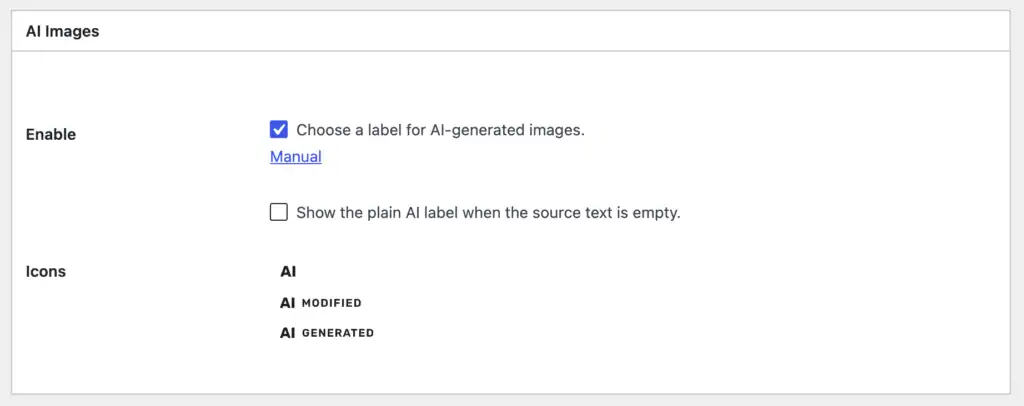
Use the “Show the plain AI label“ option to omit the wrapper and background of the usual image caption and only show the AI label.
Once the label feature is enabled, you can now select the AI label anywhere you edit images, including the Settings tab in the image block of the post editor.
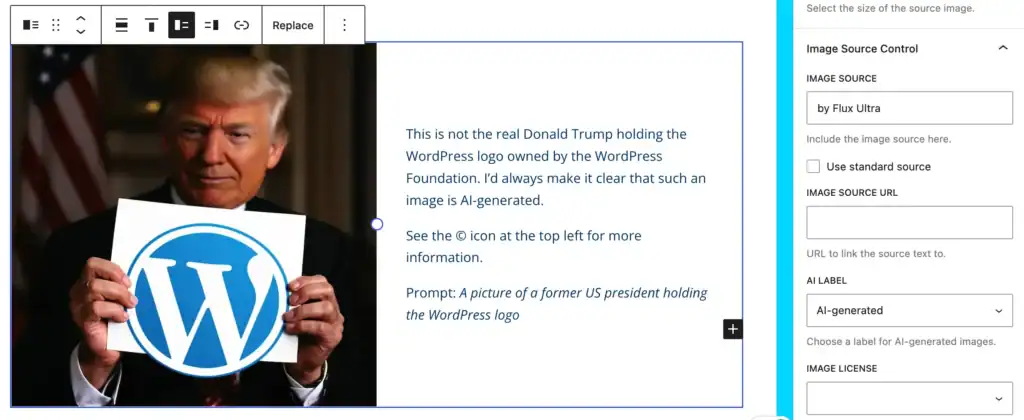
I use the Image Source field for additional information, e.g., how I created the image.
For more detailed information, like the prompt used to generate the image, I use more text around the image as explained in the next section.
Text around the image and WP caption
For a simple, one-time use of AI-generated images, you can add information about their source to the content next to the image.
One can also use the caption for this.

As you might know from some of my other posts, WordPress captions aren’t synchronized. Each post can display a different caption. Use the image overlay by Image Source Control to synchronize your captions.
Image overlay
Use Image Source Control to manage all image captions in one place and choose between various output formats and layouts.
Enter the caption text into the Image Source field in the WordPress editor.

The entered text could appear as an overlay above the image, as a list of all photos at the bottom of a post, or on a dedicated page.

For further information on display options, see image caption and global list.
Mention in the filename
While not a user-friendly or legally advised solution, you could add something like ai-generated to the filename. This way, it will be stored even when someone sees the image out of the context of your website.
This is a good additional way to tag AI-generated images.
Alternative tags to describe AI images
Here are a few suggestions for tagging AI-generated images. These tags not only clarify the image’s origin but also serve as useful keywords for organizing your media library:
AI-generated image– A clear and straightforward indication that the image was produced by artificial intelligence.Created with ChatGPT/DALLE– Specifies the tool or generator to add transparency.Digital art via AI– Emphasizes the creative process behind the image.Machine-made visual– A slightly more artistic take on AI creation.
These tags make it easier for visitors and content managers to identify and categorize AI-generated images.
Storing AI prompts
I often like to store the prompts I used to generate images with AI. Ideally, I do this close to the image so it doesn’t get lost.
DALLE: in the filename
Conveniently, the image generator DALLE, included in ChatGPT, adds the beginning of its internal prompt to the filename.
The original filename of the second image above was this:
DALL·E 2025-01-30 15.40.34 - A former U.S. president, dressed in a formal suit, kindly helping an elderly woman with gray hair and a cane cross a busy city street. The president h.webp
As you can see, this comes from my shorter prompt, since DALLE improves it on the fly to create better results.
For this article, I kept most of the original filename for that image. Usually, I would shorten it significantly and choose a shorter name.
WordPress image description
If you don’t have another reliable storage for AI-generated images and their prompts, you can store them in the Description field in the media library. This field is for informational purposes only and is not displayed in the frontend.
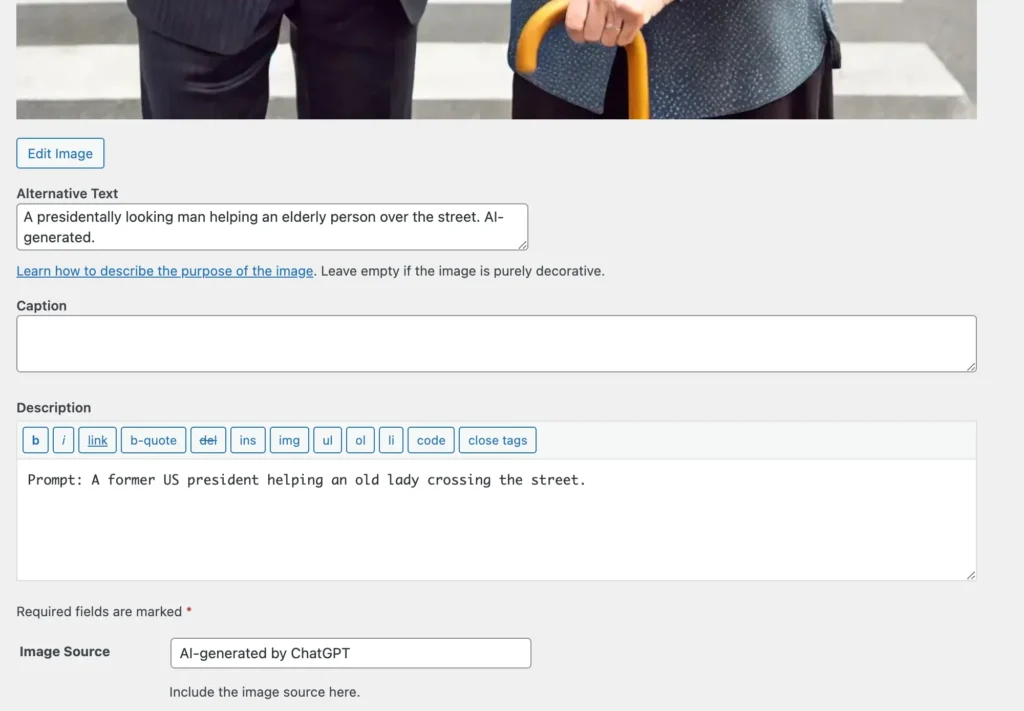
Tagging AI images internally
Instead of just showing that an image was AI-generated in the frontend, you might also want to find AI images quicker in the media library.
The WordPress media library does not have a natural tagging mechanism, so I would not use a plugin or custom code to add one if it is not needed regularly.
If you added a specific string to the image title, image filename, or description, you can use the internal image search using these strings. For example, searching for “prompt” or “AI-generated” would bring you closer to finding AI-generated images.

Conclusion
I hope the insights in my tagging practices gave you an idea of when and how to mark AI-generated images.
If sharing the full prompt with your audience feels like too much, use WordPress’s options to store it for later reuse.
When displaying the AI tag, it becomes handy to store it in a central location and style it using the options in Image Source Control. And since you already have the plugin installed, you might want to check for unused images to clean up your website.

Questions? Feedback? How can I help?
Reach out directly via the contact form.