
External Images in WordPress: Insert, Import, and Credit Them
What WordPress can do with external images, how to import them into the Media Library, and how to credit hotlinked images.
A user recently contacted the Image Source Control support to ask whether they could add image credits to pictures they embed directly from Wikimedia Commons. They didn’t want to download and re-upload every single file. Fair question.
I had already written about how to credit images from Wikimedia Commons. But I realized I had never looked closely at what WordPress itself does with images that live on another server. So I did.
This article shows you what WordPress core can do with external images, where it stops, and how to handle image credits for them.
Table of contents
- Short answer
- What counts as an external image?
- How to insert an external image in post content
- How to move an external image into the Media Library
- What WordPress can’t do with external images
- Example: hotlinking images from Wikimedia Commons
- How to credit external images with Image Source Control
- Hotlink or import? My rule of thumb
- Conclusion
- FAQ
Short answer
- WordPress lets you insert external images via URL in the Image block. They are displayed, but they don’t appear in the Media Library.
- You can import an external image into the Media Library with the upload button in the Image block toolbar or by downloading and uploading it manually.
- WordPress has no way to manage credits for external images, apart from typing them into the caption by hand.
- Image Source Control can also handle image sources for external images.
What counts as an external image?
An external image is any image shown on your site whose file is not stored on your WordPress installation. It is loaded from another server, for example:
- another blog in your WordPress multisite
- Wikimedia Commons or other image platforms
- a partner or customer website
- your CDN or asset server on a different domain, especially if they are not part of the Media Library
- old posts that still point to a previous domain or a staging site
For your visitors, external images look like any other image. For you as a site owner, they behave differently.
How to insert an external image in post content
First, go to the post or page you want to add an image to.
- Add an Image block.
- Click Insert from URL.
- Paste the direct URL of the image file and confirm.

The image now appears in your post. You can add alt text and a caption like with any other image. But the file stays on the external server, and WordPress doesn’t create a Media Library entry for it.
How to move an external image into the Media Library
If you want an external image to be stored on your server, you need to import it.
The upload button in the Image block
When an Image block contains an external image, WordPress shows an upload button in the block toolbar. It downloads the file and adds it to the Media Library. The block then points to your local copy.
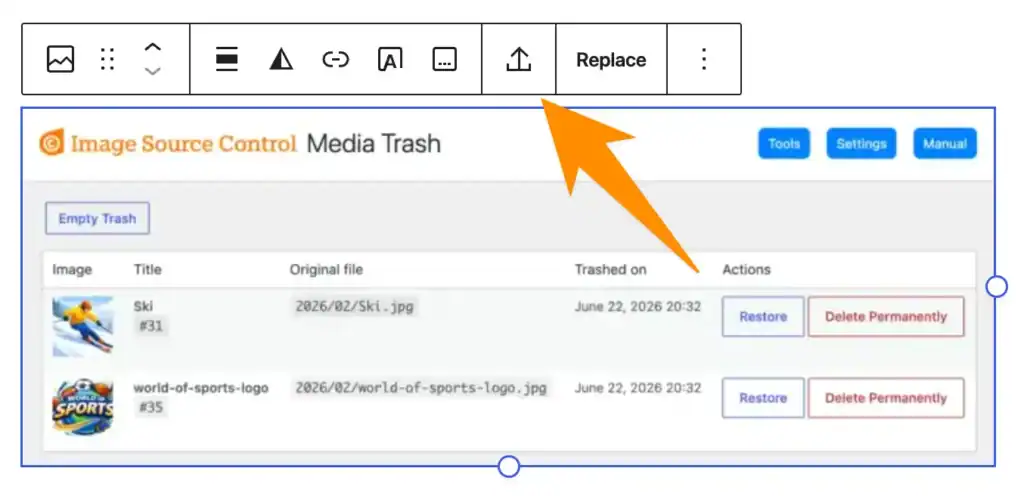
I don’t use this feature because it doesn’t let me change the file name. Imagine the file I am importing already has dimensions in its name, i.e., example-768x284.webp. Those dimensions remain part of the imported file’s name.
Instead, I download the image, rename it, and upload it via Media > Add New. It’s boring, but it gives me control over the file name. While I have the file on my computer, I also check whether I can reduce the file size without losing too much quality.
Many images at once
If older posts contain dozens of hotlinked images, e.g., after a migration, importing them one by one is no fun. There are plugins on wordpress.org that import external images automatically when you save a post. I haven’t tested them myself, so please back up your site before trying one.
What WordPress can’t do with external images
This is where it gets interesting. Here is how external images compare to images in your Media Library:
| Media Library image | External image | |
|---|---|---|
| Display in content | ✅ | ✅ |
| Alt text and caption | ✅ | ✅ in the block only |
| Listed in the Media Library | ✅ | ❌ |
| Featured image | ✅ | ❌ |
| Responsive image sizes | ✅ | ❌ |
| Part of your backups | ✅ | ❌ |
| Find where it is used | ✅ Using Image Source Control | ❌ |
| Image credits | ✅ Using Image Source Control | ✅ Using Image Source Control |
The last two rows are what bothered the user who contacted my support. Their external images existed only as a URL inside individual posts. Before using Image Source Control, there was no central place to store the author, the license, or the source link.
Example: hotlinking images from Wikimedia Commons
Wikimedia Commons is a useful example for external images on smaller websites. And it’s a good example of why hotlinking is a trade-off.
Wikimedia doesn’t block hotlinking. You can embed a file URL from upload.wikimedia.org, and it will show up on your site. Still, Wikimedia recommends downloading files and hosting them yourself. Their page on reusing content outside Wikimedia is worth reading before you decide.
Here is what I would consider:
- Files can change. Someone might upload a new version under the same file name, rename it, or delete it. Your post then shows a different picture or nothing at all.
- Privacy. Every visitor’s browser requests the file from Wikimedia’s servers and shares their IP address with them. Depending on where you and your visitors are, you may need to mention this in your privacy policy.
- License requirements still apply. Hotlinking doesn’t change the file’s licensing conditions. Check its description page to see which attribution, license links, and notices are required. My article on crediting Wikimedia Commons images explains how to find the correct attribution.
So even when hotlinking is technically fine, you still need to take care of the image credits.
How to credit external images with Image Source Control
When you import an external image into the Media Library, Image Source Control handles it like any other image. You enter the author, the license, and the source link once. Then ISC displays them as a caption, in a list below the post, or on a global list of all images.
For images that stay external, Image Source Control also lets you manage image sources. You don’t need to import the file or type the credit into each caption by hand.
You can find external image URLs indexed by Image Source Control in your content under Media > Image Sources > Additional images. These images may already be hosted on your server but aren’t part of the Media Library.
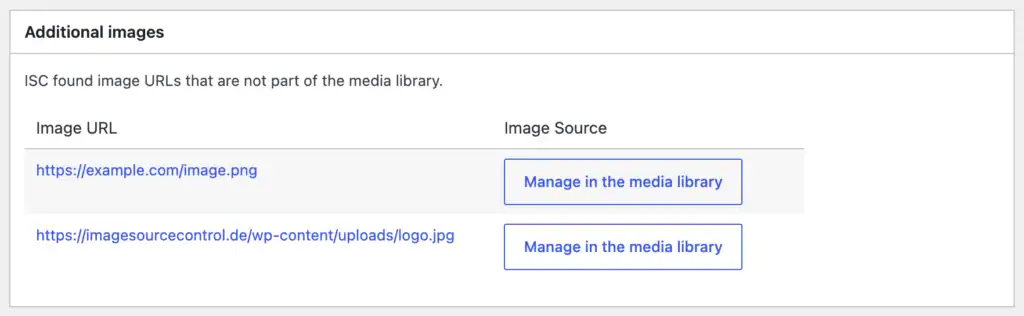
When you click on “Manage in the media library”, a placeholder entry will be added to the Media Library referencing the original URL of the external image. This lets you add image source information and display the credits on your site.
Hotlink or import? My rule of thumb
Import the image if:
- it’s important for your content
- you don’t control the external server
- you want it as a featured image or in responsive sizes
Keep it external if:
- it’s on a server you control, like your own CDN
- the source is reliable and explicitly allows embedding
- you have a clear way to keep track of the image credits
In both cases, make sure the credits don’t live only in someone’s memory.
Conclusion
WordPress core makes it easy to embed an image from another website, and the toolbar button lets you import it into the Media Library. What it doesn’t offer is a way to manage external images afterward: you won’t find them in the Media Library, and their credits are only as reliable as the caption someone typed.
For images from sources like Wikimedia Commons, that’s the part that matters. If you want to handle credits for local and external images in one place, have a look at Image Source Control.
FAQ
Can I add an external image to the WordPress Media Library without uploading it?
Not with WordPress alone. Images inserted via URL are displayed in your post, but they don’t get a Media Library entry. Importing downloads a copy to your server.
Can I use an external image as a featured image in WordPress?
Not by default. The featured image needs to be in your Media Library. Import the image first, then select it as the featured image.
Is it allowed to hotlink images from Wikimedia Commons?
Wikimedia doesn’t block it, but recommends hosting files yourself. In any case, you still need to follow the license and credit the author properly.
Why can’t I import an external image with the upload button in the Image block?
The import can fail if the source blocks downloads, the file type isn’t supported, or your site can’t complete the request. Depending on your WordPress version, browser CORS restrictions may also be involved. Try downloading the image manually and uploading it to your Media Library.
How do I credit an external image in WordPress?
You can type the credit into the image caption manually. To manage credits centrally and reuse them, use a plugin like Image Source Control.

Questions? Feedback? How can I help?
Reach out directly via the contact form.