
WordPress Media Trash: 3 Ways to Enable It
WordPress deletes media files permanently by default. No trash, no recovery. Learn how to enable the media trash feature to protect yourself from accidental deletions and restore deleted images when needed.
When you delete an image from your WordPress Media Library, it’s gone forever. Unlike posts and pages, WordPress doesn’t send media files to the trash by default; instead, it permanently deletes the file from the server and removes its reference from the database. Any posts or pages using that image will show broken images.
I’ve accidentally deleted images that were still in use, only to realize it hours later. Even worse is when a kind visitor eventually points out my mistake. The panic of trying to restore files from an outdated backup isn’t fun.
Fortunately, there are several solutions to enable a trash feature in your WordPress Media Library – from a simple code snippet to a complete plugin. This gives you a safety net, allowing you to restore accidentally deleted media files before they’re gone for good.
Where Is the Media Trash in WordPress?
Short answer: There isn’t one by default. WordPress only has a trash for posts and pages, which you can find under each content type’s list view. Media files don’t get this treatment.
Once you enable the media trash using one of the methods below, you can access it in two ways:
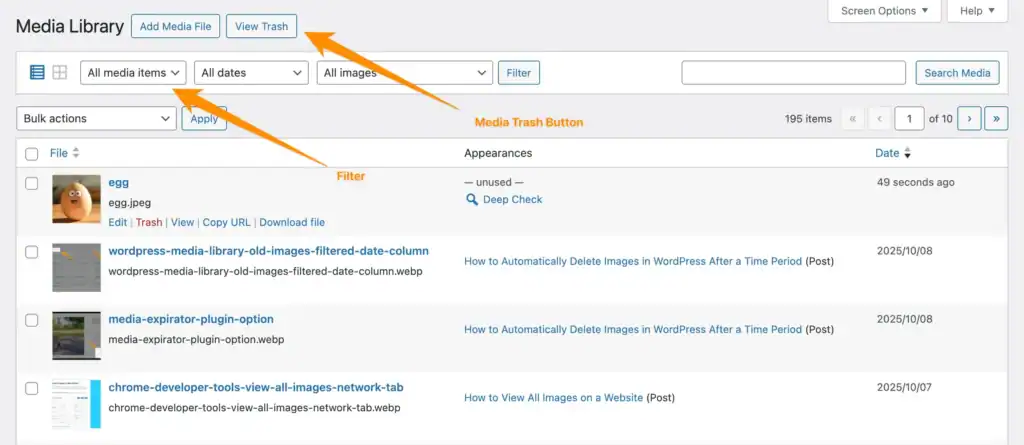
- Native method (code snippet): Go to Media > Library and use the “All media items” dropdown filter to switch to “Trash”
- With Image Source Control: A dedicated page appears under Media > Media Trash – no hidden filters, just a clear list of all trashed items
If you’ve been looking for the media trash and couldn’t find it, that’s because you need to enable it first.
Why WordPress Doesn’t Have Media Trash by Default
WordPress treats media files differently from posts and pages. When you delete a post, it goes to the trash for 30 days before being permanently deleted. But media files? They’re deleted from your server immediately.
The likely reason is storage management. Media files – primarily images and videos – take up significant server space. WordPress assumes you know what you’re deleting and won’t need a recovery option.
But this assumption doesn’t always hold true, especially when:
- Multiple users manage the same site
- You’re cleaning up a large Media Library and might make mistakes
- You’re testing different images and want to revert changes
- You’re unsure if an image is still in use somewhere on your site
I have a personal story with all of the above, but let’s not keep us from the solution.
How to Enable Media Trash in WordPress
There are two main approaches to enable the trash feature for your WordPress Media Library: using a code snippet or installing a plugin. In addition, Method 2 is a bit of both of them.
Method 1: Enable Media Trash with Code
WordPress actually has a built-in media trash feature. It’s just disabled by default. You can activate it by adding a single line of code to your wp-config.php file.
Step-by-step instructions:
- Connect to your website via FTP or use your hosting provider’s file manager
- Locate the
wp-config.phpfile in your WordPress root directory - Open the file in a text editor
- Add this line before the
/* That's all, stop editing! */comment:
define('MEDIA_TRASH', true);Code language: JavaScript (javascript)- Save the file and upload it back to your server
What happens after enabling this:
- The “Delete Permanently” link in your Media Library changes to “Trash”
- A new “Trash” filter appears in your Media Library view
- Deleted media files are moved to the trash instead of being permanently deleted
- You can restore files from the trash or permanently delete them later
- The “Trash” is deleted automatically after 30 days
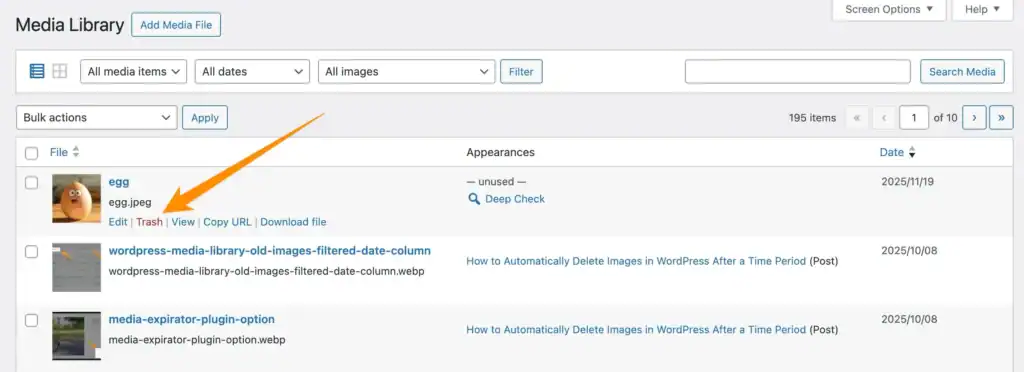
This method is lightweight and doesn’t require any additional plugins. It uses WordPress’s native functionality, which means it’s fast and won’t add any overhead to your site.
Pros:
- No plugin required
- Uses native WordPress functionality
- Lightweight and fast
Cons:
- Requires editing core WordPress files
- No additional features beyond basic trash functionality
- You need to manually empty the trash periodically
- The switch to the Trash view is a bit hidden within the “All media items” filter
The biggest caveat is that deleted files still remain visible in the frontend until the trash is emptied or they are permanently deleted. So when I want to check whether deleted images still appear before permanently removing them, I need to use another solution.
Note: Auto-deletion after 30 days
Just like posts and pages, WordPress automatically empties the media trash after 30 days. You can customize this interval by adding define('EMPTY_TRASH_DAYS', 7); to your wp-config.php file, replacing 7 with your preferred number of days. Important: This constant applies to all content types, including posts and pages – not just media files.
Method 2: Use the Media Trash Button Plugin
The free Media Trash Button plugin adds “View Trash” and “All media items” buttons directly in the Media Library header. This is a UI improvement – you still need the MEDIA_TRASH constant from Method 1.
While the buttons make switching between your library and trash faster, the plugin only works in list view, not grid view, and doesn’t change how the trash itself works. Deleted files behave exactly like with Method 1 – they remain on the server and are still visible in the frontend.
For a more comprehensive solution, consider Method 3.
Method 3: Media Trash with Image Source Control
If you want a media trash that actually removes files from the frontend and gives you a dedicated management page, Image Source Control offers a built-in Media Trash module.
How it works:
- Install Image Source Control and go to Settings > Image Sources(?)
- Enable the “Media Trash” module
- Use one of the new actions to move images to the trash
- Visit Media > Media Trash to restore or permanently delete images
What makes this different from using MEDIA_TRASH?
- Files disappear from the frontend immediately. Unlike native trash, where deleted images can still appear on your site, Image Source Control moves the file to a different folder. If the image was still in use somewhere, you’ll see an empty placeholder instead, which makes it easy to find where an image is used.
- Dedicated trash page. Instead of a hidden filter dropdown, you get a clear page under Media > Media Trash listing all trashed items.
- No time limit. The native trash auto-deletes after 30 days. Image Source Control keeps trashed files until you decide what to do with them.
- One-click restore. Recover individual files or clean up the entire trash with a single click.
- No wp-config.php editing required.
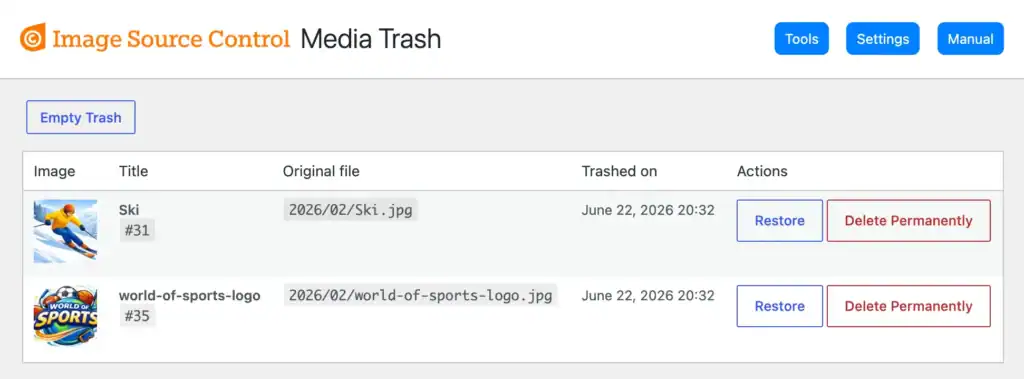
The Media Trash module is part of Image Source Control’s media management features, which also include deleting unused images across your entire site – including page builders, custom fields, and WooCommerce products.
How to Restore Media Files from Trash
Once you’ve enabled media trash, restoring deleted files is straightforward. The exact steps depend on which method you’re using.
Restoring files with Image Source Control: Go to Media > Media Trash, find the file, and click “Restore.” The file is moved back to its original location and reappears in the frontend automatically – no broken image links, no manual fixes needed.
When using one of the methods that includes the MEDIA_TRASH constant, you will find the restore option in the Media Library.
- Go to Media > Library in your WordPress dashboard
- Click the dropdown filter that says “All media items”
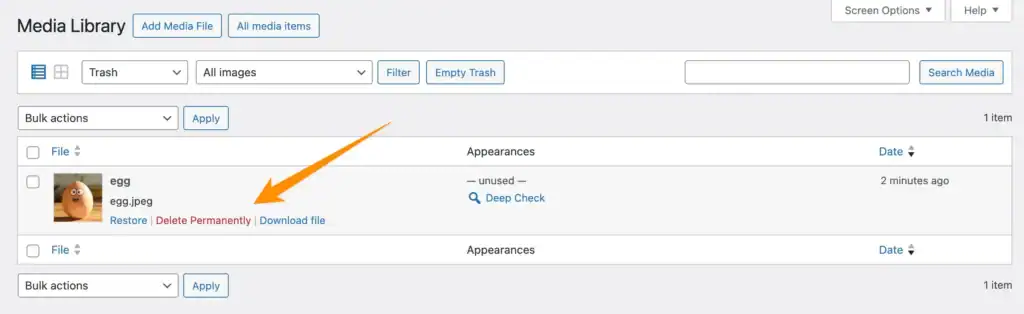
- Select Trash
- Find the file you want to restore
- Click Restore to move it back to your Media Library
You can also permanently delete files from the trash by clicking “Delete Permanently” while viewing the trash.
When Media Trash Isn’t Enough: Finding Unused Images
The media trash protects you from accidental deletions, but it doesn’t help you decide which images are safe to delete in the first place.
This is where Image Source Control’s unused images feature comes in. It scans your entire WordPress site – including page builder data, custom fields, WooCommerce products, and theme settings – to identify images that aren’t used anywhere.
Combined with the Media Trash module, this gives you a complete workflow:
- Scan your site to find unused images
- Move them to the Media Trash instead of deleting them permanently
- Check your site to make sure nothing looks broken
- Permanently delete the files once you’re confident they’re truly unused
This workflow removes the guesswork and the fear of breaking something.
Conclusion
Enabling the WordPress media trash is a simple but effective way to protect yourself from accidental deletions. For a quick fix, add define('MEDIA_TRASH', true); to your wp-config.php file – it’s lightweight and uses native WordPress functionality.
If you want more control – files that actually disappear from the frontend, a dedicated trash page, no auto-deletion, and the ability to find unused images before you delete them – Image Source Control covers all of that in one plugin.
Whichever method you choose, you’ll never have to panic about accidentally deleted images again.
FAQ
What happens to a media file when you delete it from the media library in WordPress?
By default, WordPress immediately and permanently deletes the file from the server without sending it to the trash. The file reference has been removed from the database, so it will no longer appear in your Media Library or as a selectable image. This can break any posts or pages that use that image.
Does WordPress have a trash for media files?
No, WordPress doesn’t have a trash feature for media files enabled by default. When you delete a media file, it’s permanently removed from your server immediately. However, you can enable a trash feature by adding define('MEDIA_TRASH', true); to your wp-config.php file.
How do I recover deleted images from WordPress Media Library?
With the Media Trash module enabled in Image Source Control, you will find all deleted images under Media > Media Trash. Here, you can recover deleted images with one click. Without this feature enabled, you’ll need to restore deleted images from a backup.
How long do files stay in the WordPress media trash?
With Image Source Control, your Media Trash storage time is indefinite. Using the MEDIA_TRASH constant, media files in the trash are automatically deleted after 30 days. You can adjust this period using the constant mentioned in the article.
Can I move unused images to the trash with Image Source Control?
Yes. The Unused Images page in Image Source Control shows a Move to Trash bulk action. This lets you move selected unused images to the Media Library trash instead of permanently deleting them immediately.
Why are deleted WordPress media files still showing on my site?
When you use the native WordPress media trash (enabled via MEDIA_TRASH constant), trashed files are only flagged internally – the actual files remain on the server and may still be visible in the frontend. Image Source Control’s Media Trash solves this by moving files to a separate folder, so they immediately disappear from your site while still being recoverable.

Questions? Feedback? How can I help?
Reach out directly via the contact form.